Needle Movers
A Needle Mover is a leading indicator of churn or expansion detected 3–9 months before renewal — early enough to act decisively. Where traditional health scores tell you something has already gone wrong, Needle Movers surface the signals that precede deterioration, giving your team the runway to intervene while it still matters.
Why Timing Is Everything
Traditional health scores are lagging indicators. By the time a score turns red — overall product usage has dropped, your champion has gone dark, engagement across the account has collapsed — the window for effective intervention has largely closed. The chance of a successful recovery at 1–2 months before renewal is below 15%.
The signals that actually predict churn appear much earlier: a champion's tone shifting from positive to neutral in emails, a competitor mentioned favorably in a QBR, a key team quietly abandoning a sticky feature. These are the moments FunnelStory detects and surfaces as Needle Movers — during the Value Phase, 6–9 months out, when the chance of successful intervention exceeds 75%.
| Health Scores | Needle Movers | |
|---|---|---|
| Indicator type | Lagging | Leading |
| Purpose | Insights into past performance | Predictive, allows timely adjustments |
| When detected | After deterioration has occurred | 3–9 months before renewal |
| Intervention window | < 15% success rate | > 75% success rate |
How Needle Movers Are Detected
On a daily — and frequently hourly — basis, FunnelStory AI analyzes thousands to millions of data points across conversations, usage behavior, and third-party data. It looks for topics, moments, business signals, and usage patterns that have historically preceded churn, expansion, or renewal events in your customer base.
FunnelStory powers this through two patented technologies — AI Customer Journeys and AI Health Scoring — combined with temporal prediction modeling. The detection pipeline runs end-to-end across data ingestion, customer journey mining and NLP, feature engineering, ML modeling, and collaborative workflow execution. The temporal analysis learns your specific business DNA: what combinations of signals preceded churn for customers like this one, at this stage of their journey, with this usage profile.
Needle Mover Types
Needle Movers are organized by type, surfaced as tabs across the top of the list view:
| Type | What it captures |
|---|---|
| Pricing | Concerns about cost, subscription value, or competitive pricing comparisons |
| Feature Requests | Gaps between what the product does and what the customer needs |
| Task, Issue or Bug | Unresolved product problems creating friction or distrust |
| Personnel Change | Champion departures, new economic buyers, team restructures |
| Competitor | Mentions of competitors, evaluation activity, or favorable comparisons |
| Single-Threaded Relationship | Only one team member (or too few tracked contacts) has recent engagement with the account — a coverage risk |
| Relationship Drop | A month-over-month drop in conversation volume or attendance with the account |
Unlike the content-based types above, these last two aren't detected from conversation topics — they're computed from your account's Relationship Map, where admins configure the thresholds that decide when they fire.
A separate Discovered tab (Beta) surfaces needle movers sourced from Content Themes — recurring topics the FunnelStory team's AI has identified and curated for your workspace, distinct from the fixed types above. See Content Themes for how these differ from the standard types.
Additional types can be configured per workspace based on your business.
Impact Classification
Every Needle Mover is classified by direction and severity, visualized as three icons at the left of each row:
- Opportunity — green dollar signs ($$$) indicate an expansion or retention opportunity
- Risk — red triangles (△△△) indicate a churn or contraction risk
Severity is shown by the number of filled icons across a three-point scale: High (all three filled), Med (two filled), Low (one filled).
This makes triage instant: three filled red triangles is a high-priority risk; a single green dollar sign is a low-priority opportunity.
The Needle Movers List
The main Needle Movers view — "Search, track, and prioritize needle movers across all accounts" — displays every open signal as a sortable table.
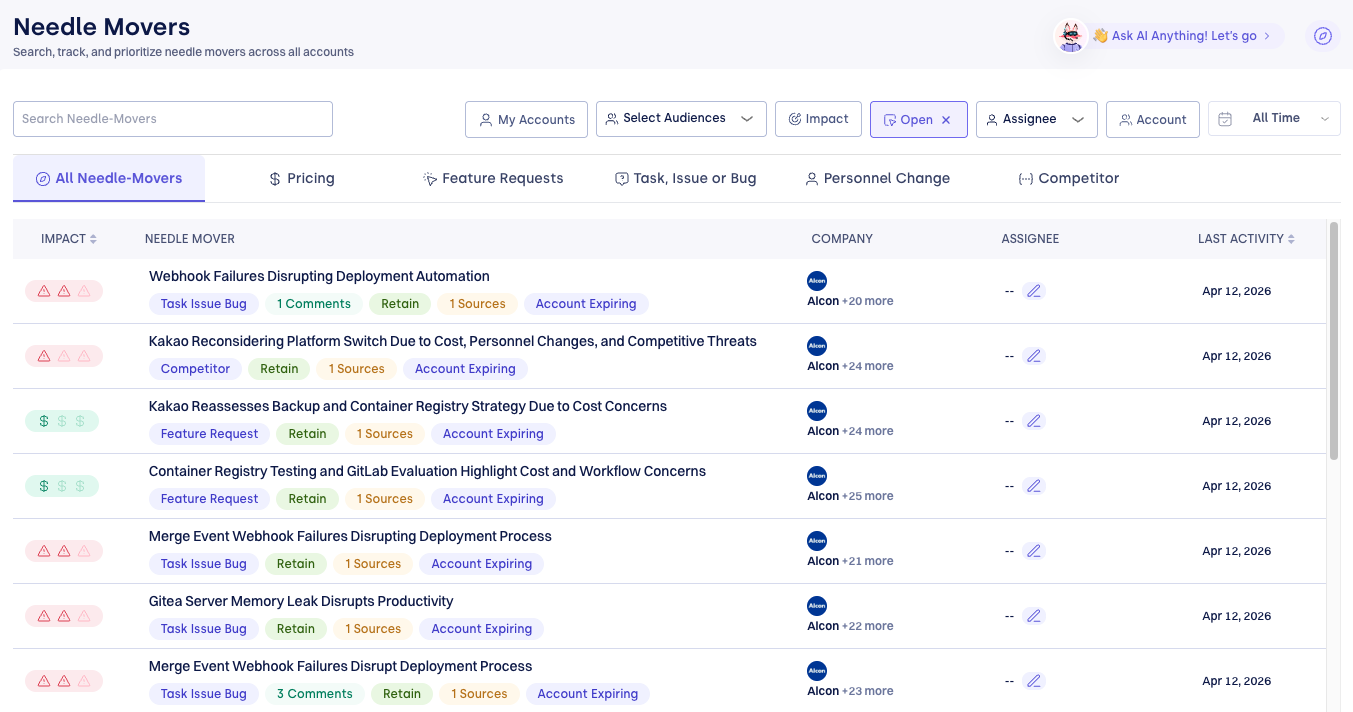
Each row shows:
- Impact icons — Retain or Churn direction with severity level
- Title — a descriptive, AI-generated summary of the signal (see How titles are generated)
- Tags — type, comment count, Retain/Churn label, source count, account status (e.g. Account Expiring)
- Company — the account name, with "+N more" when a signal spans multiple accounts
- Assignee — current owner, or unassigned
- Last Activity — the date of the most recent update
Filtering and search:
The toolbar provides fast controls to narrow the list:
- My Accounts — toggle to show only your assigned accounts (default on login)
- Select Audiences — filter by a specific set of accounts; the account picker shows each account's name, current journey stage, engagement frequency (Daily/Weekly/Monthly), and activity count
- Impact — filter by Risk or Opportunity, and by severity (High/Med/Low)
- State — Open, Closed, or All (default: Open)
- Status — narrow to one or more of the five statuses (Open, In Review, Action Taken, Monitoring, Resolved)
- Assignee — filter by owner
- Account — filter to a specific account
- All Time — filter by date range
You can also search by keyword across needle mover titles, account names, and content. See Managing Needle Movers for the full filter reference.
The Needle Mover Detail
Clicking a row opens the detail view, navigable with arrows (1 / 217 Needle Movers) so you can move through your queue without returning to the list.
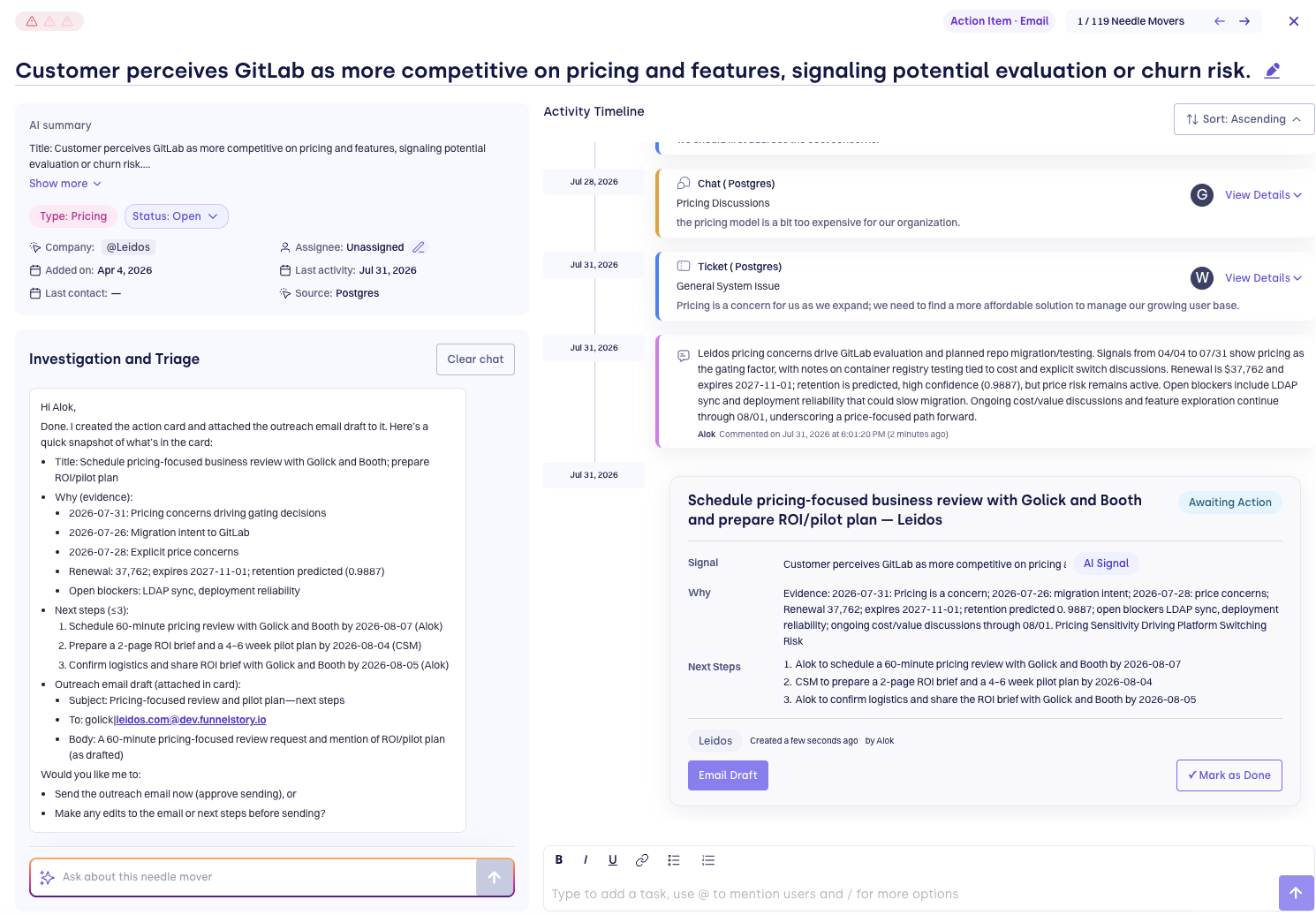
Left panel — Overview:
- AI Summary — a synthesized explanation of why this signal was detected, drawn from the source data. Expandable with "Show more." See AI Summaries for how the summary and title are generated.
- Investigation and Triage — an inline chat, pre-loaded with the context of this needle mover. Ask it to investigate, and it can draft a follow-up Action Card — including an outreach email — directly in the conversation. This is the on-demand mode of FunnelStory's first Outcome-Based Agent; see Investigation and Triage for more.
- Overview metadata — Type, State (Open/Closed), Company, Assignee, Added On, Last Activity, and Source
Right panel — Activity Timeline:
A chronological record of everything associated with this Needle Mover, sortable ascending or descending — the first entry is always "Needle mover created", timestamped to when FunnelStory first detected the signal. See Activity timeline entries for the full field-by-field breakdown, including what shows up when an Action Card email gets sent.
Taking Action
At the bottom of the detail view, a comment and task input — "Type to add a task, use @ to mention users and / for more options" — lets you collaborate, assign, and act directly from the needle mover.
Supported actions:
- Assign — assign to yourself or a team member from the Assignee dropdown; all changes are recorded on the timeline
- Discuss internally — comment and @mention colleagues to align before engaging the customer
- Close — change State from Open to Closed once the issue is resolved; closed needle movers are removed from the open queue
- Create a task — use
/in the comment input for task and action options - Email the customer — initiate a customer-facing message with full needle mover context
- Create a CRM task — push the issue to Salesforce or HubSpot for Account Executive follow-up
- Act on a suggested action card — when autosuggest is turned on, FunnelStory may have already investigated this needle mover and drafted a recommended response; accept it to turn it into a task, or ask the inline Investigation and Triage chat to investigate and draft one now
Any action taken on a Needle Mover is recorded on its activity timeline and counts as implicit acceptance. See Comments, tasks, and outreach for the operational detail behind each of these.
Unaccepted Needle Movers older than 3 months automatically decay from the open view, keeping the workspace focused on current signals.
For CSMs and Account Reps
The default view on login filters to your assigned accounts. Use the type tabs and filter toolbar to focus on the signals that need your attention. The navigation arrows in the detail view let you move through your queue efficiently. The Investigation and Triage chat is available inline on every needle mover for instant context and suggested responses — no need to switch to a separate interface.
For Customer Success and Sales Leaders
Toggle off My Accounts to see needle movers across all accounts and team members. From this view you can:
- Monitor risk and opportunity signals across the full portfolio
- Reprioritize and reassign — edit the Assignee on any needle mover to shift ownership
- Track team responsiveness — Last Activity and comment history show how each signal is being worked
- Turn on autosuggested action cards so open needle movers are investigated automatically and a recommended response is drafted before your team opens them — see Autosuggested action cards
Relationship to Predictions
Needle Movers and Predictions work together but serve different purposes. Predictions give you a score — the probability that an account will churn or expand. Needle Movers give you the reason — the specific, sourced signal that is moving that probability. Together they provide both the "what" and the "why" needed to take confident action.
Related
- Predictions — account-level risk and expansion probability scores
- How FunnelStory Works — where Needle Movers fit in the pre-computed intelligence layer
- Needle Movers: Notifications — configuring alerts for new and updated Needle Movers
- AI Agents — automating multi-step responses to Needle Mover signals