Review Your Team's Book in Focus Areas
If you manage a team, Focus Areas shows your book and your team's in one place. This guide is a routine for reviewing the whole team's book, finding risk wherever it sits, and drilling into a single rep's accounts before a 1:1 — using the Scope picker and the Owner column. The Focus Areas reference has the full detail on every control; this is how to run the review.
You manage a team when you're set as its manager in Shared teams. If you don't manage one, there's no Scope picker — you'll see only your own book, and the CSM routine is the guide you want.
Set your scope
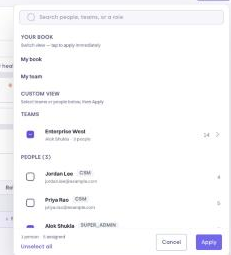
At the top of the page, a bar shows whose book you're viewing, with a Change button — the Scope picker. It decides whose accounts every tab shows:
| Scope | Accounts shown | Use it to… |
|---|---|---|
| My book | The accounts assigned to you | Work your own accounts |
| My team / My teams | Yours plus every member's, across all teams you manage | Review the whole book |
| A team | Yours plus that team's members' | Focus on one team when you manage several |
| An individual team member | That person's accounts only | Prep for a 1:1 or spot-check a rep |
My book, My team(s), and a per-team option (when you manage more than one) are quick picks; to focus on one person, choose them from the chooser's list of your team members. The line under the page title confirms what you're looking at — for example Showing West: Priya Shah, Ben Okafor or Showing Ben Okafor's book of business.
1. Read the team's numbers (2 minutes)
Set scope to My team and read the summary strip — it now covers the whole team's book:
- ACV at Risk — team contract value in the Critical tier, and how many accounts.
- Accounts — the team's account count and how many renew in the next 90 days.
- Accounts and ACV by health tier — where the team's ACV sits across Critical, At risk, and On track.
- Open tasks by due date — the team's action cards, including how many are Overdue.
This is your weekly read on where risk is concentrated before you look at individual accounts.
2. Find risk across the team (5 minutes)
On Book of Business, the Owner column appears whenever your scope is a team, so you can see whose account each row is while you triage:
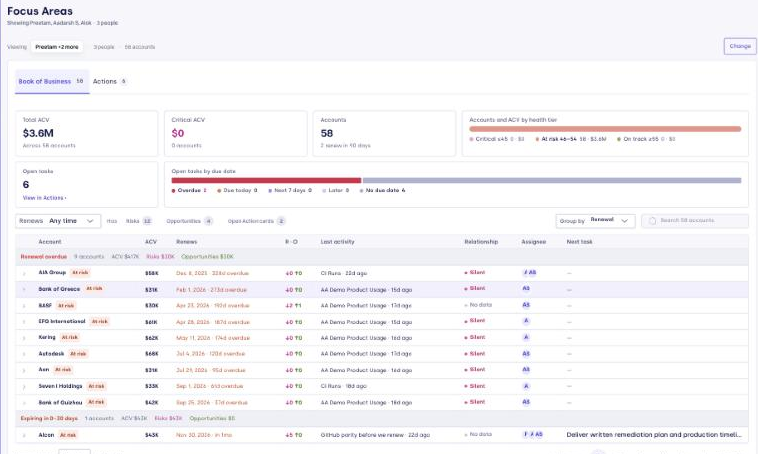
- Group by Health tier to put Critical accounts first, or Group by Renewal to work the next 90 days.
- Filter by Has risks or click the Critical tier in the strip, then read the Owner column to see where the trouble clusters.
- Expand any row for its concerns, open cards, needle movers, and last meeting — the same triage card a CSM uses.
| If you see… | Do this |
|---|---|
| One owner with several Critical accounts | Switch scope to that person (below) and review their book together |
| Overdue tasks piling up for one owner | Check in on bandwidth; open a card to see what's stuck |
| Red or amber Relationship badges across a rep's accounts | Coach on multi-threading; see Relationship maps |
| A renewal inside 30 days with open risks | Make sure the owner has a plan, or step in |
3. Drill into one rep (for a 1:1)
Open the Scope picker and choose that team member. Every tab now shows only their accounts, so you can run the CSM routine on their book together: their renewals, their Critical accounts, and their open cards. Switch back to My team when you're done.
4. Coach from the action cards
On the Actions tab, the Owner filter also appears for a team scope. Filter by a rep, or by Overdue and Priority, and group by Account to see the shape of someone's workload. Open a card to read its reasoning and drafted outreach — useful context for a coaching conversation, and you can ask the agent to explain or refine a card on the spot.
Where Focus Areas stops
Focus Areas shows the book for your selected scope — your teams and their members. To see any account in the workspace, or a book outside the teams you manage, use Accounts View and its Assignees filter.
Related
- Focus Areas — the full reference, including the Scope picker and the Owner column.
- Shared teams — set who manages each team.
- Review Your Book in Focus Areas — the individual CSM routine.
- Accounts View — the full accounts list, for books outside your scope.