Managing Needle Movers
Use this page when you need to triage, assign, collaborate on, or close needle movers in the main workspace views. It complements the product tour in Needle Movers (Core concepts) with operational detail.
Status and states
Every needle mover carries one of five statuses, and each status maps to an underlying Open or Closed state:
| Status | State | Meaning |
|---|---|---|
| Open | Open | New or untriaged — nobody has started working it yet. |
| In Review | Open | Someone is actively looking into it. |
| Action Taken | Open | A response has already gone out; keeping it open to confirm it lands. |
| Monitoring | Open | Being watched for a bit longer before you call it done. |
| Resolved | Closed | The risk has passed or the opportunity was captured. |
Open needle movers (Open, In Review, Action Taken, or Monitoring) appear in your default list filters and count toward team responsiveness metrics. Closed (Resolved) items drop out of the default open queue but remain searchable and readable for audit purposes.
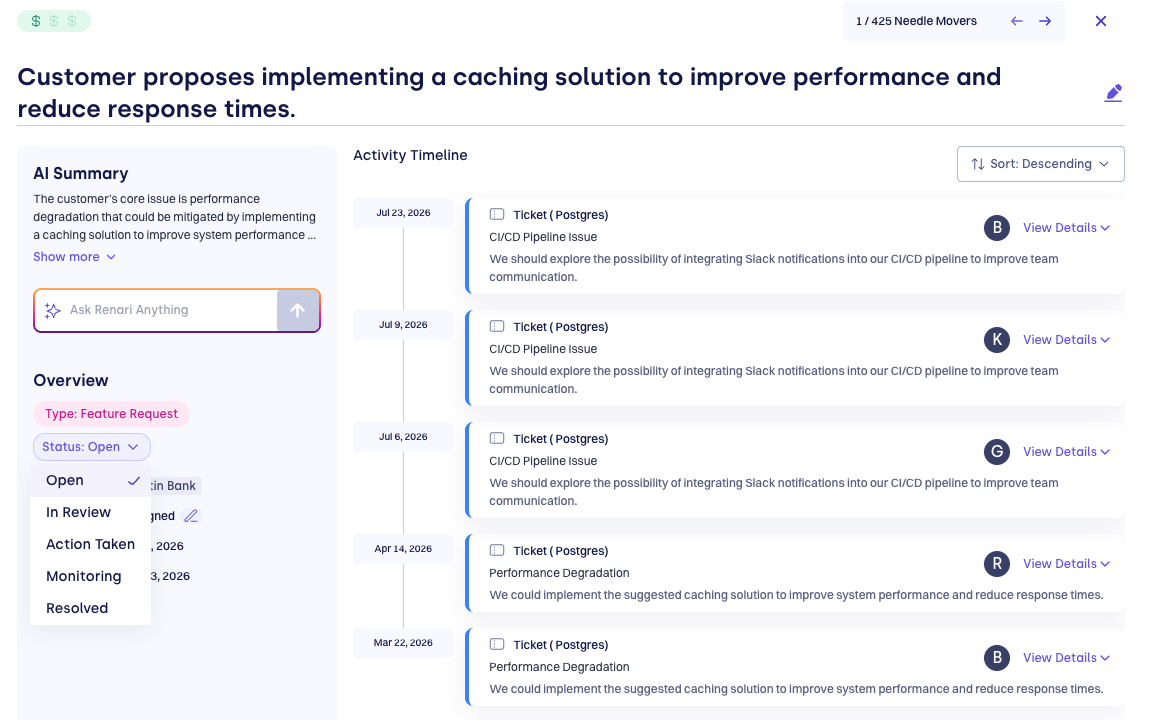
Change status from the needle mover detail view — you can move between any of the five at any time as the situation develops. Every status change records a Status updated entry on the activity timeline, and moving to Resolved frees the signal from day-to-day triage. Becoming assignee or closing a needle mover also typically notifies the people affected — see Assignment and status changes.
Assignment and ownership
Use the Assignee field to route a needle mover to yourself or a teammate. Assignment is visible in the list view and on the account, so everyone knows who is driving the response.
Managers and leaders can filter the full portfolio (toggle off My Accounts) and reassign work when load shifts or ownership changes mid-quarter.
Comments, tasks, and outreach
The composer at the bottom of the detail view, and the actions around it, are where you respond to a needle mover. See Taking Action for the full list; the most-used ones:
- Comment — Add context for your team; use @ to mention another workspace user so they receive a notification (see Needle Mover notifications).
- Tasks — Use / in the composer to create or link tasks tied to the needle mover when your workspace uses task workflows.
- Email the customer — Send a customer-facing message with the needle mover's context already attached, either by hand or via a drafted Action Card.
- Create a CRM task — Push the signal to Salesforce or HubSpot so an Account Executive can follow up in their own workflow.
Every accepted action is reflected on the activity timeline, which acts as the system of record for the signal.
Titles and metadata
The title is generated to summarize the theme of the signal. If your role allows edits, small corrections can keep portfolio rollups readable—prefer editing when the AI phrasing is misleading, not for full rewrites of customer intent.
Type tabs and tag chips categorize the needle mover — see Needle Mover Types for the full list, including the two relationship-derived types sourced from your account's Relationship Map. Impact icons communicate risk vs opportunity and High / Med / Low severity — see Impact Classification.
Multiple accounts
Some needle movers span more than one account (for example a parent conversation that references subsidiaries). The list shows the primary Company with +N more when additional accounts are linked. Open the detail view to see the full association set before you take customer-facing action.
List views: filters, search, and sorting
The main Needle Movers list is designed for daily CSM and AM workflows:
| Control | Use it to |
|---|---|
| My Accounts | Limit to accounts you own (common default after login) |
| Select Audiences | Narrow to a saved audience of accounts |
| Impact | Filter by risk vs opportunity and severity |
| State | Switch between the active (Open) and historical (Closed) queues, or All |
| Status | Narrow further to one or more of the five statuses (Open, In Review, Action Taken, Monitoring, Resolved) |
| Assignee | See only your team’s ownership |
| Account | Drill to one customer |
| All Time | Restrict by date range |
| Search | Match keywords in titles, accounts, and surfaced content |
Sort columns to prioritize by last activity, severity, or account name—whatever matches your stand-up or QBR prep process.
Detail view and queue navigation
Opening a row shows the AI Summary, the Investigation and Triage chat, overview metadata, and the activity timeline (see AI summaries). Use the arrow controls to move 1 / N through the filtered queue without returning to the list—useful for dedicated “needle mover morning” blocks.
Autosuggested action cards
FunnelStory can automatically draft an action card — a recommended next step, with reasoning and, when appropriate, a ready-to-send email — for open needle movers your team hasn't acted on yet. This runs in the background; nobody has to ask for it. This is the Auto mode of FunnelStory's first Outcome-Based Agent — the same investigation that runs on demand in the Investigation and Triage chat, just triggered automatically instead of by a person.
On each cycle, FunnelStory looks at open needle movers that were updated within a configurable lookback window and don't already have an autosuggested card. For each one, an AI agent investigates the evidence and, when it's warranted, creates a card with:
- A concise, evidence-based title (for example "Re-engage Ryan Schultz before the Aug 1 renewal — Acme Inc")
- A Why section citing the specific dates, counts, or names behind the recommendation
- Up to three concrete next steps
- An optional draft email — included only when the agent recommends reaching out to a specific contact
The card is auto-assigned to the account's CSM (or CSE if no CSM is set) and appears everywhere Action Cards normally show up — the needle mover's own timeline, the account's Actions tab, Focus Areas, and Renewal Pipeline action counts. It carries no status until someone acts on it, so it reads as a suggestion; accepting it turns it into a normal task, Awaiting Action. Only one autosuggested card exists per needle mover at a time, and an untouched card expires automatically after a configurable number of days so the queue doesn't fill up with stale suggestions.
Turning it on
Autosuggest is off by default. An admin can enable it from Configuration → Features → Needle Movers:
| Setting | What it controls | Default |
|---|---|---|
| Autosuggest Actions | Turns the feature on or off | Off |
| Look back over | Only needle movers updated within this many days are investigated | 7 days |
| Expire untouched cards after | How long an untouched autosuggested card stays in the working queue before it expires | 4 days |
Decay and housekeeping
Open needle movers that were never accepted decay out of the default open view after 3 months, so the workspace stays focused on current risk and opportunity. Decayed items move to the closed queue automatically. This is automatic hygiene, not a penalty—if you still need one, adjust filters or search to find it.