Segment
The Segment connection identifies your workspace in FunnelStory so Segment track/identify/group calls sent to FunnelStory’s HTTP destination are stored for product activity and account views.
What FunnelStory uses it for
- Inbound events — Webhook ingestion; events feed built-in product behavior rather than user-defined SQL models.
Before you connect
- In Segment, add (or configure) a HTTP/Webhook destination pointing at the FunnelStory ingestion URL and shared secret from your workspace documentation or support.
- The connection entry in Configuration → Connections ties incoming events to this workspace; you do not paste a Segment read API token for sync.
Add the connection in FunnelStory
-
Open Configuration → Connections → Add connection, then choose Segment.
-
Complete the fields in the connection form:
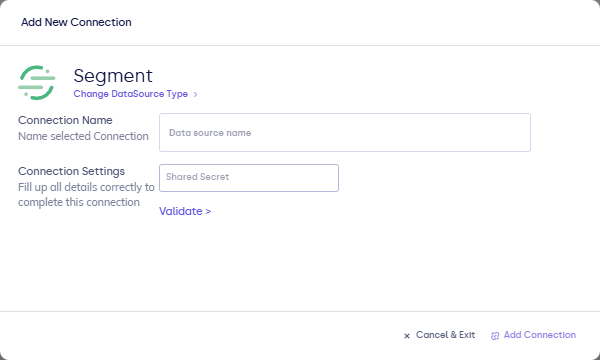
| Field | Description |
|---|---|
| Connection name | Display name. |
| Shared secret (or equivalent) | Value Segment sends to authenticate webhook calls to FunnelStory—match what you configure in the Segment destination. |
- Click Validate, then Add Connection (or Connect, as the UI shows).

Configure the Segment webhook destination
Inbound events use a Webhook destination in Segment (see Segment docs).
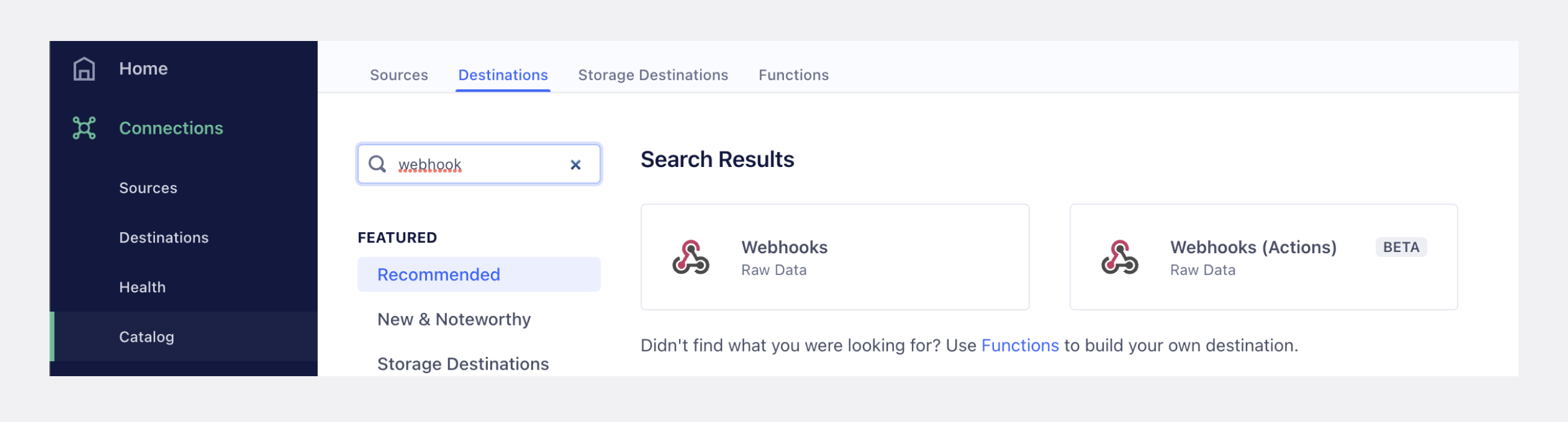
- In Segment, open Catalog and add (or edit) a Webhooks destination.
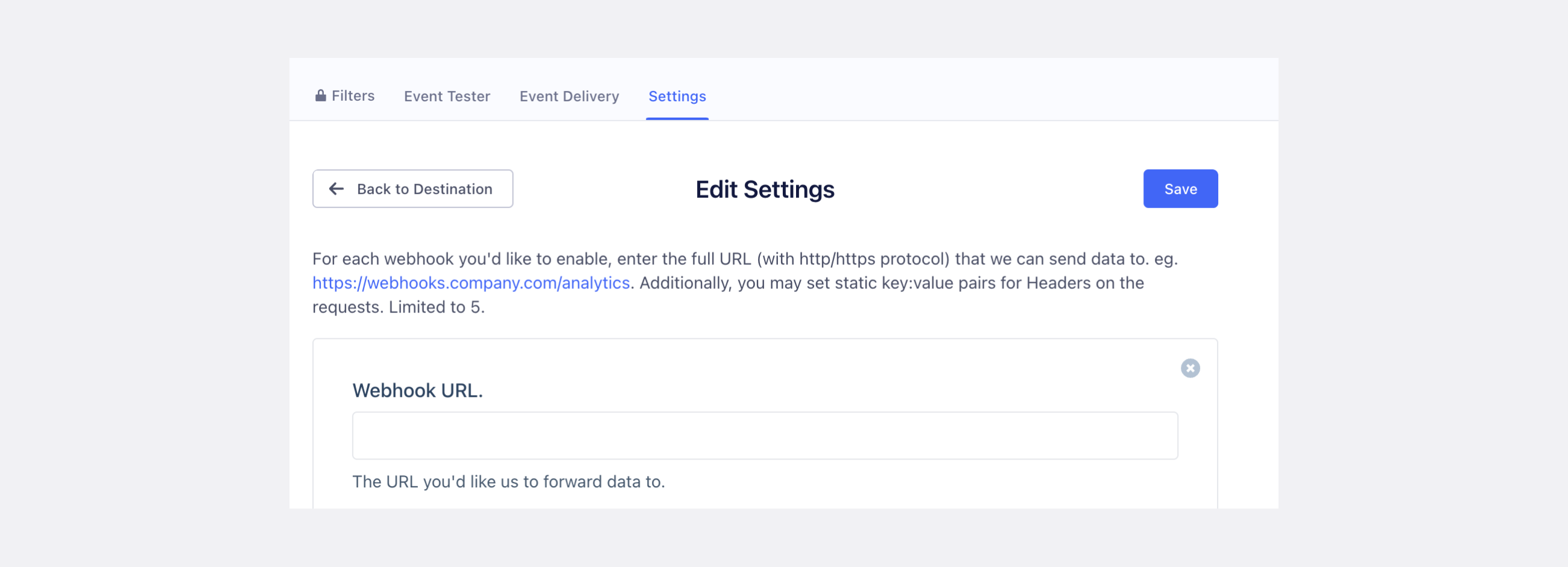
- In Destinations, open your webhook destination and paste the FunnelStory ingestion URL and credentials from your workspace (connection settings or onboarding docs).
After you connect
Finish Segment destination setup so events include stable IDs that line up with accounts in FunnelStory. Events far in the past or future may be rejected—see product limits or support.
Once you’ve added the Segment data connection, a Product Activity Model will be automatically created for you.