Documentation site
The Documentation site connection crawls your company's own public documentation or help site and ingests each page as a document, so FunnelStory's AI can search your product knowledge when it reasons and writes about your product. Use it when you want agents and assistants to name features correctly and ground their answers in your real docs rather than guessing.
Unlike a database or CRM connection, there are no models to configure and nothing is pulled into the accounts data — the pages become searchable knowledge, not structured records. If your documentation already lives in a data warehouse, you can bring it in with a Product Docs data model instead.
What FunnelStory uses it for
- AI grounding. The ingested pages are available to FunnelStory's AI agents and assistants through the workspace's semantic database (as product documentation), so an agent can look up and cite how a part of your product works before writing about it. See Grounding agents in your product docs for how agents and MCP use it.
Before you connect
- Have the start URL of your documentation ready — an absolute, public HTTPS URL, for example
https://docs.yourcompany.com/. The crawler only reads publicly reachable pages; it doesn't sign in, and you don't provide any credentials. - Be ready to confirm ownership: you'll acknowledge that this is your company's own documentation and that you authorize FunnelStory to crawl it.
- If your docs site restricts traffic by IP, allowlist FunnelStory's egress addresses — see Allowed IP addresses.
Add the connection in FunnelStory
-
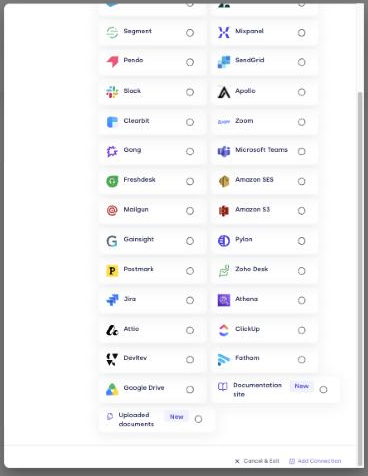
Open Configuration → Connections → Add connection, then choose Documentation site from the Applications tab.
-
Fill in the dialog:
Field Description Site URL The start page of your docs. Must be https. FunnelStory stays within this URL's host and path.Connection name Display name in FunnelStory (suggested automatically from the host). Re-fetch How often to re-crawl: Daily (default), Weekly, or Manual only. Only changed pages are processed. 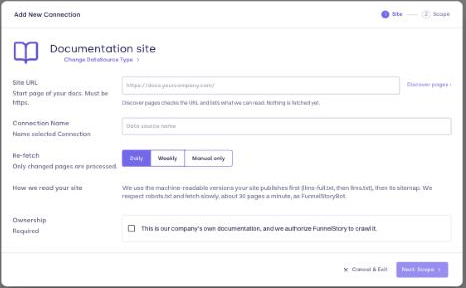
-
Confirm ownership — "This is our company's own documentation, and we authorize FunnelStory to crawl it." The crawler won't run without it.
-
Choose Discover pages. FunnelStory reads your site's
robots.txt,llms.txt, and sitemaps to list the available pages without fetching them yet. -
On the scope step, pick which sections to include, and decide how new sections found later are handled: Include automatically or Wait for review. FunnelStory then fetches the in-scope pages and extracts each one into a document.
Supported page formats are Markdown, HTML, plain text, and PDF. A crawl respects robots.txt (the crawler identifies itself as FunnelStoryBot/1.0).
Managing the connection
- The connection card shows progress and status — Discovering…, Fetching · N / M pages, Ready (or Ready · N pages failed), or Failed.
- Open the connection to see new, updated, and removed pages, any failed pages, and new sections awaiting review. From there you can Edit Scope or Re-fetch Now.
- Scope and size: a connection crawls up to 5,000 in-scope pages. If a start URL lists an unusually large number of pages, FunnelStory asks you to point it at a narrower docs section instead.
- Removing it: deleting the connection stops future crawls but doesn't immediately remove the documents it already ingested; those are purged separately.