Amazon S3
The Amazon S3 connection reads a single CSV object from S3 using IAM access keys so you can build file-backed models.
What FunnelStory uses it for
- Data models — The configured object is loaded into FunnelStory’s query layer like other database-backed sources.
Before you connect
- Upload or maintain a CSV file in a bucket.
- Create IAM keys with
s3:GetObjecton that object (and list permission if your policy requires it). - Note
aws_region,s3_bucket_name, and the objects3_object_key(full key path to the file—not a folder prefix).
Add the connection in FunnelStory
-
Open Configuration → Connections → Add connection, then choose Amazon S3.
-
Complete the fields in the connection form. Enter
aws_access_key_id,aws_secret_access_key,aws_region,s3_bucket_name,s3_object_key, ands3_file_type(csvonly). Optionally sets3_csv_paramsas JSON, for example{"delimiter": ";"}.
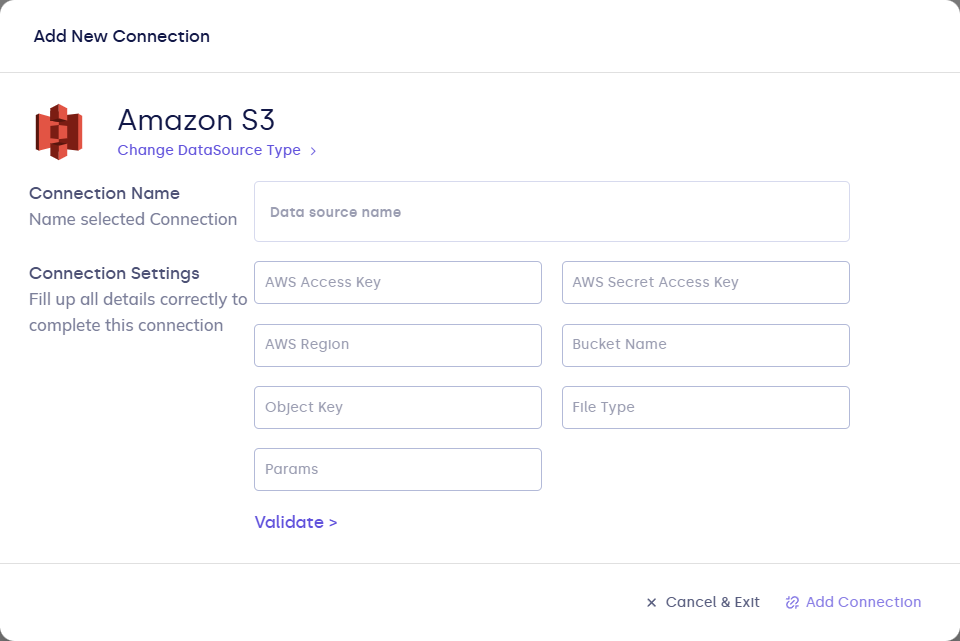
| Field | Description |
|---|---|
| Connection name | Display name. |
| aws_access_key_id | IAM access key ID. |
| aws_secret_access_key | IAM secret key. |
| aws_region | Bucket region. |
| s3_bucket_name | Bucket name. |
| s3_object_key | Path to the CSV object. |
| s3_file_type | Must be csv. |
| s3_csv_params | Optional. JSON with CSV options (e.g. delimiter). |
- Click Validate, then Add Connection.
After you connect
If the bucket policy restricts by IP, allow FunnelStory’s static egress addresses from Allowed IP addresses. Define models against the loaded CSV and refresh after you replace the object or update the key.