Zendesk
The Zendesk connection pulls support tickets and related conversation data from Zendesk into FunnelStory so tickets can appear on accounts and feed support context in the product.
What FunnelStory uses it for
- Support tickets — Synced tickets and conversations are stored and linked to accounts when the requester’s email matches a known user in your workspace.
- Optional
match_tld— When ticket requesters use a subdomain email (for exampleyou@mail.customer.com) that does not match any user, enablingmatch_tldmakes FunnelStory retry matching after dropping the leftmost label of the domain (here,you@customer.com). If that still matches nobody, the ticket is skipped. Emails with only a registrable domain + TLD (for exampleyou@customer.com, two hostname parts) are unchanged. This is a fallback for account linking, not a separate “TLD-only” match mode.
Before you connect
- FunnelStory connects to Zendesk with OAuth. A Zendesk admin can authorize the integration.
- Know your Zendesk subdomain (the hostname part before
.zendesk.com).
Add the connection in FunnelStory
-
Open Configuration → Connections → Add connection, then choose Zendesk.
-
Complete the fields in the connection form:
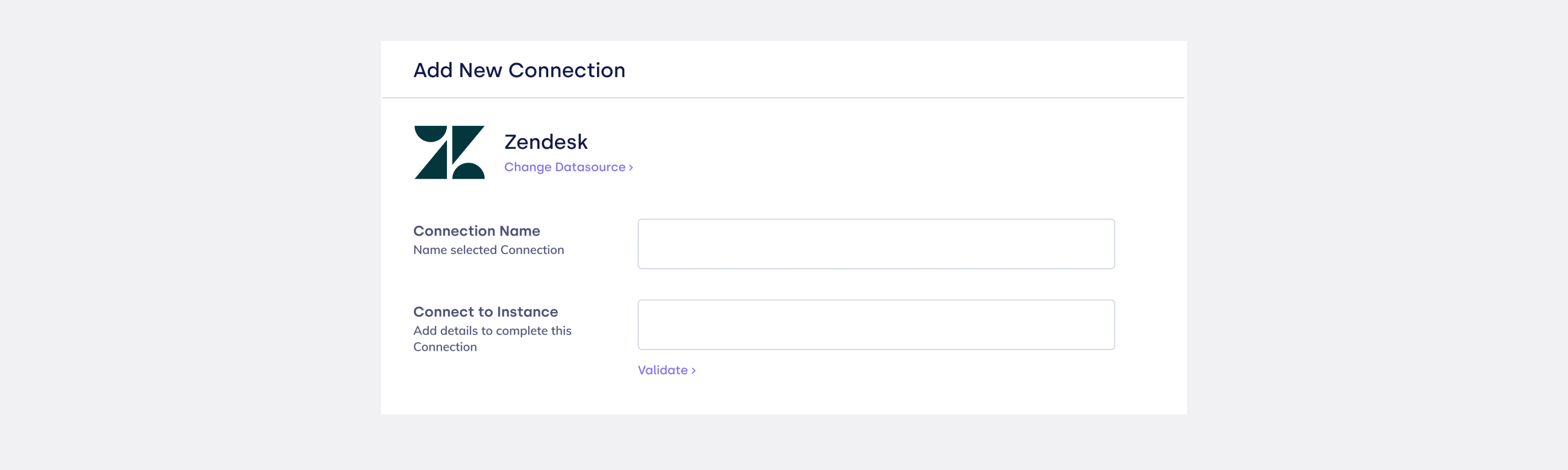
| Field | Description |
|---|---|
| Connection name | Display name. |
| Subdomain | Required. Your Zendesk subdomain. |
| match_tld | Optional boolean. If the requester’s full email matches no user, retry once using the same local part and a domain with the first subdomain label removed (only when the domain has more than two dot-separated parts). Helps when corporate mail uses an extra subdomain. |
-
Click Connect to start OAuth.
-
Sign in on Zendesk’s authorization screen to finish linking the workspace.

After you connect
Once you’ve added the Zendesk data connection, a Support Ticket Model will be automatically created for you.