Jira
The Jira connection (Jira Cloud via Atlassian OAuth) exposes Jira issues to FunnelStory’s query/model layer, similar to a database connection, so you can join issue data with CRM, product, and support sources.
What FunnelStory uses it for
- Data models — Define models with queries against Jira-backed virtual tables (JQL/issue data), not only a single “ticket” preset.
Before you connect
- Use an Atlassian account that can OAuth into your Jira Cloud site and read the projects you need.
- Know your site URL (for example
https://yourcompany.atlassian.net). This is stored assite_url.
Add the connection in FunnelStory
-
Open Configuration → Connections → Add connection, then choose Jira.
-
Complete the fields in the connection form:
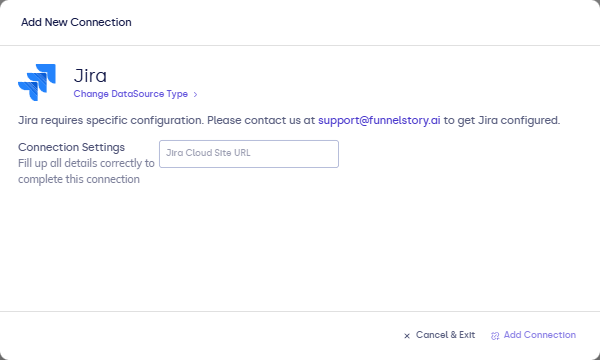
| Field | Description |
|---|---|
| Connection name | Display name. |
| site_url | Base URL of your Jira Cloud site (e.g. https://yourcompany.atlassian.net). |
-
Click Connect / Authorize to complete OAuth with Atlassian.
-
When you return to FunnelStory, Validate and finish Add Connection (or Connect) as the UI shows.
After you connect
Add or edit models and write queries in the model builder as you would for other SQL-style sources. Refresh to ingest updated issues within the configured windows.