BigQuery
The BigQuery connection uses a Google service account so FunnelStory can run read-only jobs against your datasets and drive data models from BigQuery tables and views.
What FunnelStory uses it for
- Data models — Query BigQuery with SQL compatible with the BigQuery engine.
Before you connect
FunnelStory needs a service account with read-only access to BigQuery. Minimum permissions include:
bigquery.datasets.getbigquery.tables.getbigquery.tables.getDatabigquery.tables.listbigquery.jobs.create
You can define a custom IAM role with those permissions, or attach the predefined roles BigQuery Data Viewer and BigQuery Job User to the service account.
- BigQuery Data Viewer — View datasets, tables, and read table data (no writes).
- BigQuery Job User — Create and manage query jobs in the project (required to run queries).
Enable the BigQuery API
-
Open the Google Cloud Console and select the correct project from the project picker at the top of the page.
-
In the left navigation, open APIs & Services. Then either:
- Go to Dashboard and click + ENABLE APIS AND SERVICES (or Enable APIs and Services), or
- Go to Library (or Enabled APIs & services → + ENABLE APIS AND SERVICES).
-
Search for BigQuery API, open it, and click Enable.
Create a service account and grant roles
-
In the left navigation, go to IAM & Admin → Service accounts.
-
Click + CREATE SERVICE ACCOUNT (or Create service account).
-
Enter a Service account name (and optional description), then continue.
-
On the Grant this service account access to project step, click Select a role, add:
- BigQuery Data Viewer
- BigQuery Job User
Add each role with Add another role if the UI offers it, then continue and finish creating the account.

If roles are missing from the service account
If the account was created without those roles, add them on the project IAM policy:
-
Go to IAM & Admin → IAM.
-
Click Grant access (or + GRANT ACCESS / Add depending on console version).
-
Paste the service account email (for example
name@project-id.iam.gserviceaccount.com). -
Assign BigQuery Data Viewer and BigQuery Job User, then save.
Project ID, JSON key, and optional endpoint
Project ID
- Use the project picker at the top of the console: the project’s ID is shown in the project details (not only the display name).
- Or open IAM & Admin → Settings and copy Project ID.
- The downloaded key file also contains
"project_id".
Credentials JSON
-
Go to IAM & Admin → Service accounts.
-
Open your service account (click the email or name).
-
Open the Keys tab.
-
Select Add key → Create new key → JSON. A key file downloads immediately. Store it securely; you will paste or upload its contents in FunnelStory.
Endpoint (optional)
- Leave Endpoint empty unless your organization requires a non-default BigQuery API base URL (for example a restricted or private endpoint). If unsure, leave it blank.
Add the connection in FunnelStory
-
Open Configuration → Connections → Add connection, then choose BigQuery.
-
Complete the fields in the connection form:
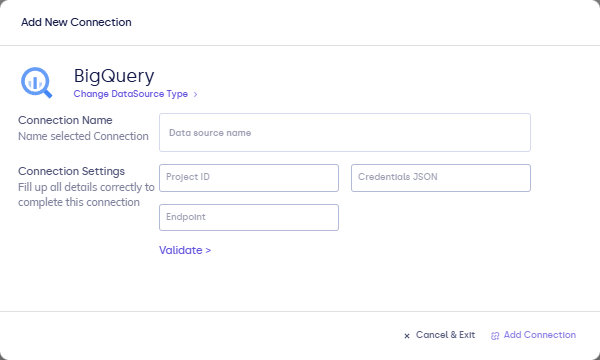
| Field | Description |
|---|---|
| Connection name | Display name (for example BigQuery — production). |
| Project ID (optional) | GCP project ID. Often inferred from the JSON; set explicitly if needed. |
| Endpoint (optional) | Custom BigQuery API base URL only if required by your network or org policy. |
| Credentials JSON | Full contents of the service account JSON key. The account must have BigQuery Data Viewer and BigQuery Job User (or equivalent custom permissions). |
- Click Validate, then Add Connection.
After you connect
Configure models with BigQuery SQL. See Writing queries for guidance on types and timestamps.