PostgreSQL
The PostgreSQL connection lets FunnelStory run read-only SQL against your database to power data models (for example accounts, users, subscriptions, and warehouse-backed metrics). Use it when your source of truth already lives in Postgres or when you expose reporting views for FunnelStory to query.
What FunnelStory uses it for
- Data models — You write SQL in the model builder, validate the query, and map result columns to FunnelStory properties.
- Joins — The same connection (or additional connections) can participate in multi-source model configuration where your workspace supports it.
Before you connect
- Network — The database must accept inbound connections from FunnelStory’s servers, unless you use an SSH tunnel. Allow the static egress IPs in Allowed IP addresses in your firewall or security group.
- TLS — Enable SSL/TLS for production databases when your policy requires it.
- Permissions — FunnelStory only needs read access. A dedicated database user with
SELECTon the schemas you query is recommended.
Optional: read-only user
CREATE USER funnelstory_readonly WITH PASSWORD '<strong_password>';
GRANT CONNECT ON DATABASE your_database TO funnelstory_readonly;
GRANT USAGE ON SCHEMA public TO funnelstory_readonly;
GRANT SELECT ON ALL TABLES IN SCHEMA public TO funnelstory_readonly;
ALTER DEFAULT PRIVILEGES IN SCHEMA public GRANT SELECT ON TABLES TO funnelstory_readonly;
Replace public with your schema if tables live elsewhere.
Add the connection in FunnelStory
-
Open Configuration → Connections → Add connection, then choose PostgreSQL.
-
Complete the fields in the connection form:
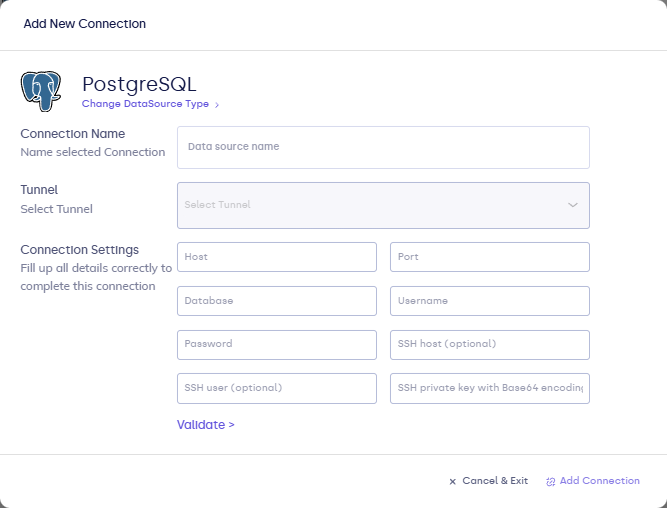
| Field | Description |
|---|---|
| Connection name | Label shown in FunnelStory (for example Prod Postgres). |
| Host | Hostname or IP of the Postgres server. |
| Port | Port (default 5432). |
| Database | Database name. |
| Username | Database user. |
| Password | Database password. |
| SSH host / user / private key (Base64) (optional) | Only if you use tunnel fields on the form instead of a separately registered tunnel—see SSH tunnels. |
- Click Validate, then Add Connection.
After you connect
The connection appears on the connections list. Use Refresh when you need an immediate pull. Attach this connection when you configure models; SQL dialect is standard PostgreSQL. For timestamp and query tips, see Writing queries.