MS SQL Server
The Microsoft SQL Server connection lets FunnelStory run read-only queries against SQL Server (or Azure SQL where supported) to back data models such as accounts, contracts, and usage summaries.
What FunnelStory uses it for
- Data models — You supply T-SQL (or SQL Server–compatible SQL), validate it, and map columns to FunnelStory properties.
Before you connect
- Network — Ensure the instance is reachable from FunnelStory’s servers (Allowed IP addresses), or use an SSH tunnel to a host that can reach SQL Server.
- Permissions — Grant a dedicated login db_datareader (or equivalent
SELECTonly) on the databases or views you query.
Add the connection in FunnelStory
-
Open Configuration → Connections → Add connection, then choose Microsoft SQL Server.
-
Complete the fields in the connection form:
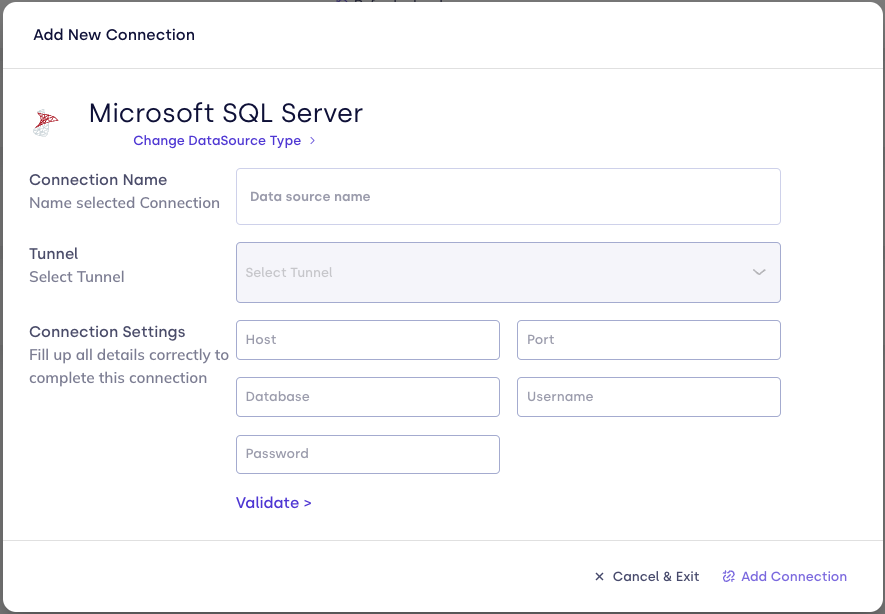
| Field | Description |
|---|---|
| Connection name | Label in FunnelStory. |
| Host | Server hostname or IP. |
| Port | SQL Server port (often 1433). |
| Database | Initial database / catalog. |
| Username | SQL login. |
| Password | SQL password. |
| SSH (optional) | Tunnel-related fields if shown; see SSH tunnels. |
- Click Validate, then Add Connection.
After you connect
Attach the connection to models and write queries in SQL Server dialect. For cross-dialect notes, see Writing queries.